Set Up a Dedicated Email Sending Domain
What is it? You Sending Domain, is how the internet routes emails. It Rather than sharing the domain provided for all users, a dedicated email domain is a single private domain you use to send and receive emails. Within Lead Hero, when you are using LC Email - you have the ability to create your own dedicated domain. If you are using a non-LC Email (or SMTP Provider) you will not have this ability in-app.
Why it matters? Not having a Dedicated Email Sending Domain often results in your emails going into SPAM despite practices good emailing. When you set up a Dedicated Email Sending Domain, you can gain full control of your reputation and email deliverability. This means you can work your way into all emails going into the inbox while avoiding that SPAM folder.
How to Set it Up? If you haven't already, it is highly recommended to have your own Dedicated Domain for sending emails.
What is a Dedicated Sending Domain?
A dedicated sending domain allows you to send emails that appear to be coming from your brand, which can help you maintain a better reputation with email services. Any sub-account or agency can create a dedicated sending domain, and it's quick and easy.
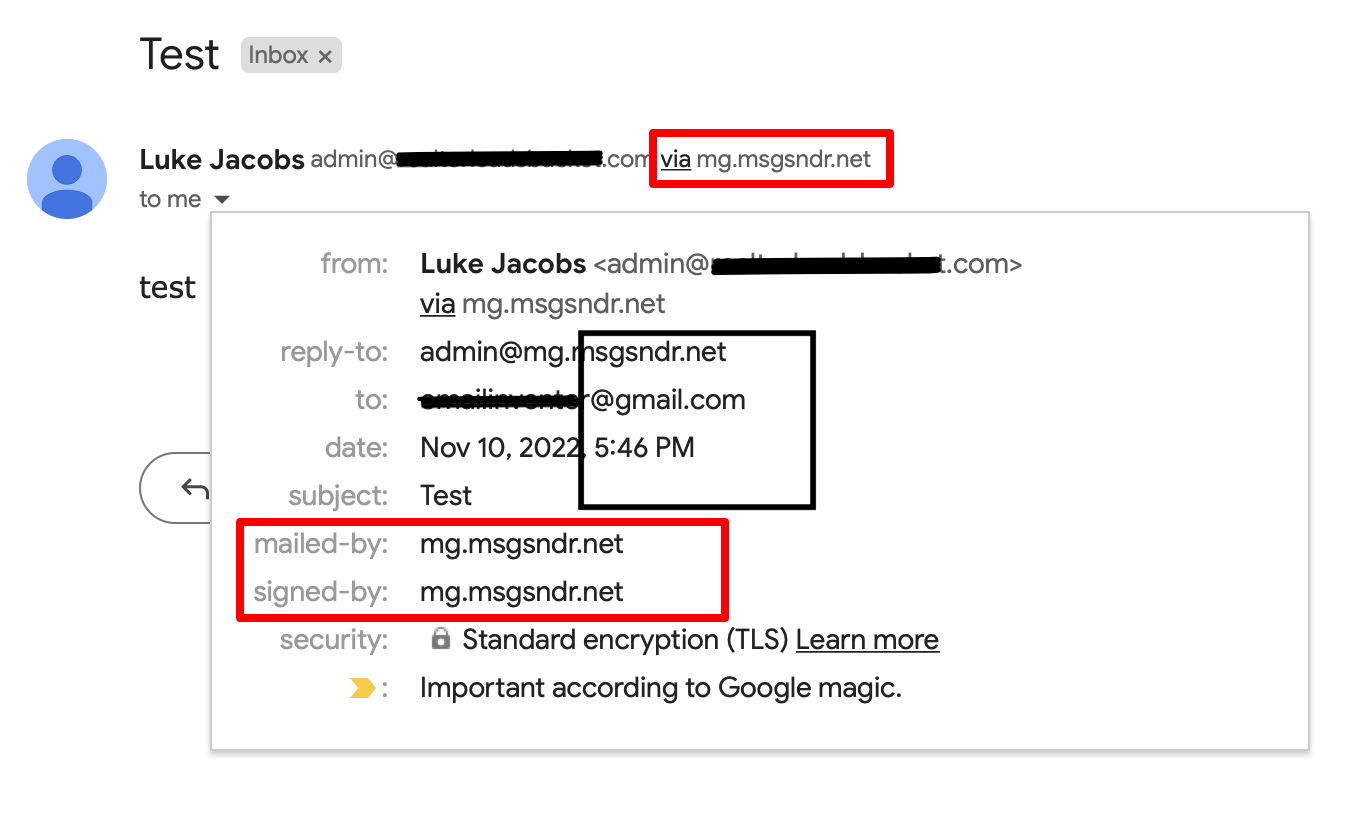
By default, all emails sent from our platform will show the name of our email-sending servers in the "sent on behalf of" or "sent via" email headers:
Configuring Dedicated Sending Domains
You can create multiple sending domains under your account and use different domains for different email-sending actions such as 1-to-1 emailing, emails sent from workflows, marketing campaign emails, and Payment and Invoices emails.
Step 1: Navigate to Email Services
-
Navigate to Settings > Email Services
- Click the "Dedicated Domain and IP" button.


Step 2: Add Domain Information
-
Click the "Add Domain" button to begin configuring your sending domain.
- Enter the sub-domain you want to use for your dedicated sending domain.

Step 3: Verify DNS Records
Once you've added your sub-domain, you will need to verify your DNS records. You will have the option to either allow Lead Hero to auto-configure your DNS records, or enter your DNS records manually.
If Lead Hero is unable to automatically configure your DNS records, you will need to add them manually.
REMEMBER: The propagation process can take up to 24 hours. If it has been longer than 24 hours, please double-check your DNS settings by following the process above.
