- Adding and removing tags
- Importing and exporting customer lists and data
- Adding people to campaigns
- Adding people to single and bulk emails
- Adding people to one-off SMS
Overview
The Remove Contact Tag action is used to remove specific tags from a contact's profile within your CRM. This action is useful for managing contact segments, updating contact status, and ensuring accurate tracking of interactions and behaviors.
Action Name
Remove Contact Tag
Action Description
This action removes the selected or all tag(s) from a contact's record. Tags are often used to categorize contacts based on their interactions, interests, or status. By removing a tag, you can alter a contact's segmentation and the workflows they may be a part of.
Action Details


| Field Name | Description | Mandatory |
| Tags | Select the tag(s) you wish to remove from the contact's profile. You can choose multiple tags. | Yes |
| Remove All Tags | Switch on the toggle if you want to remove all the tags | No |
How to Configure the Remove Contact Tag Action:
- Action Name: Enter a meaningful name for the action. This name will help you identify the purpose of this action in the workflow.
- Tags: Click on the "Select a tag" dropdown and choose the tag(s) you want to remove from the contact. You can select multiple tags if needed.
- Remove All Tags: Switch on the toggle if you want all the tags to removed. When the toggle is switched on they user will not be able to access the "Tags" field.
Suggested Triggers to Combine with This Action (But not limited to)
-
Customer Replied: Use this trigger to remove a tag based on specific keywords or phrases in a customer's reply. For example, if a customer responds with "unsubscribe" or "not interested," you might remove tags like "Interested" or "Potential Lead."
-
Appointment Status Changed: This trigger can initiate the tag removal action if an appointment is canceled or rescheduled. You could remove tags like "Appointment Booked" to accurately reflect the contact's current status.
-
Survey Submitted: If a survey response indicates that a contact is no longer interested in a service or product, use this trigger to remove tags that categorize them as a potential customer.
Example
Configuration Example:
You are running a campaign where contacts are tagged as "Interested" when they sign up for a webinar. If they do not attend the webinar, you want to remove this tag to avoid sending them follow-up emails intended for engaged participants.
- Action Name: "Remove Webinar Interested Tag"
- Tags: "Interested"
Workflow Steps:
- Trigger: Webinar Not Attended - Triggers if a contact does not attend the scheduled webinar.
- Action: Remove Contact Tag - Configured to remove the "Interested" tag from these contacts.
- Action: Update Contact Field - Optionally, add a new tag like "Missed Webinar" to accurately segment these contacts for future follow-ups or different workflows.
The Add Contact Tag action adds specific tags to contacts, which helps in organizing, categorizing, and triggering various workflows. Tags are a crucial feature for maintaining structured contact records and enabling automation processes.
Action Name
Add Contact Tag
Action Description
The Add Contact Tag action is designed to automatically apply one or more tags to a contact's record. User can also create new tags from the action itself.
Action Details
Step by Step Guide
- Choose the Action Type: Select "Add Contact Tag" from the list of available actions.
- Name Your Action: Enter a descriptive name for the action, such as "Tag Added."
- Select Tags: Select one or multiple tags that you want to add to the contact.
- Delete Tags: Click on the "x" icon to de-select the already selected tags from the list.
- Add New Tag: If you want to add a tag and it is not available in the list, simply type the tag that you would like to add and click on "Add New Tag" button and the tag will be added.


Example
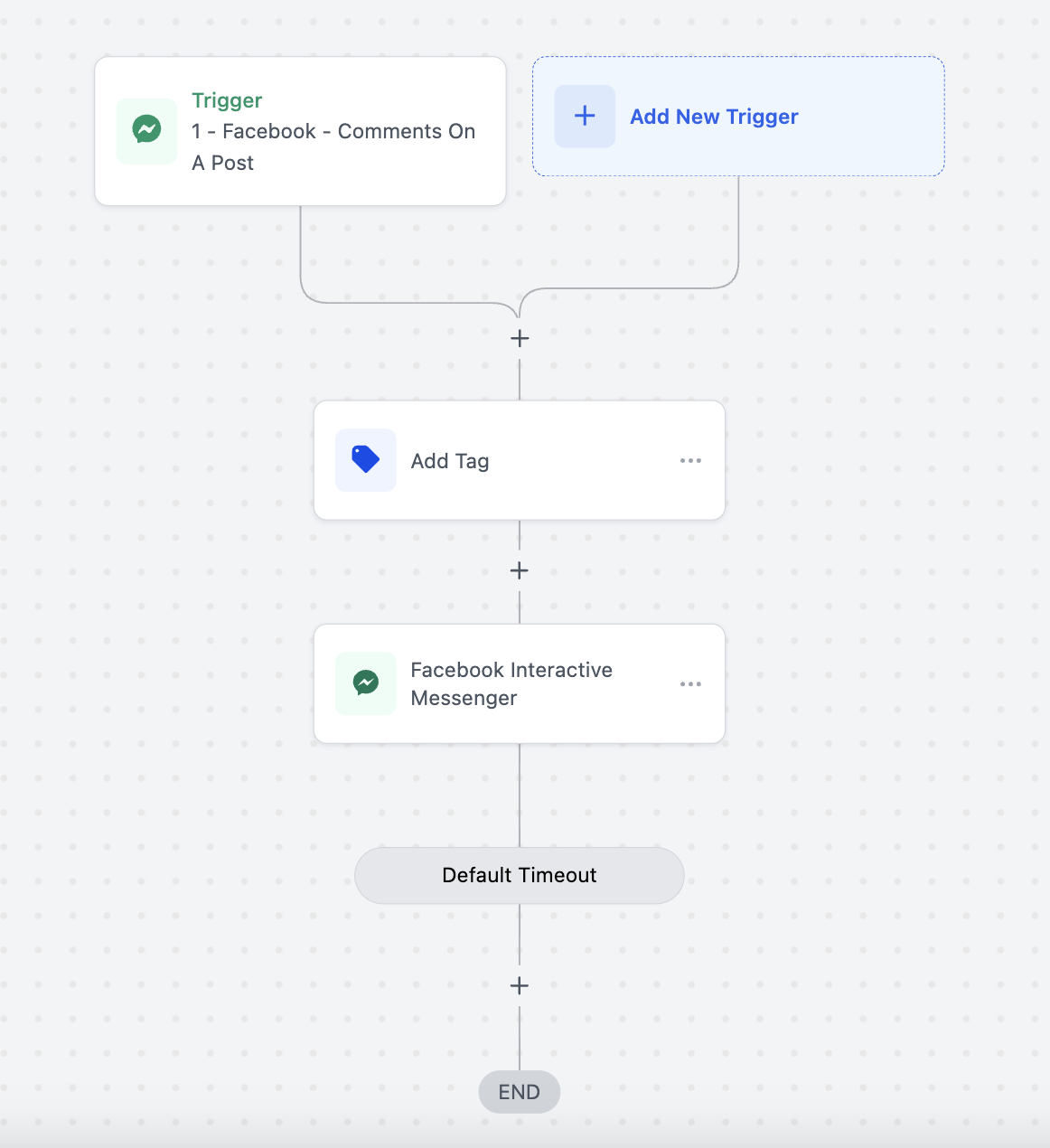
Add a tag when user has came through Facebook
Scenario: A business wants to add a tag to the customers that have replied on a post and are interested in buying the product. The user wants to add a "Facebook" tag to the user to run separate marketing campaign in the future.
Action Setup:
- Action: Add Contact Tag
- Name: Tag is added
- Fields: Select "Facebook" tag from the list
Workflow Trigger:
- Facebook - Comments On A Post: The contact will enter the workflow when they have commented on the selected Facebook post.
Workflow Actions:
- Add Tag: Automatically adds the "Facebook" tag to the contact.
- Facebook Interactive Messenger: Start a conversation with the customer over Facebook DM.
Outcome: This ensures that the tag is added to the contact and categorize the contact on the basis of tags.