To view the status of a Bulk Action, go to Contacts > Bulk Actions > Show Stats where you can view the status.
You can also pause, cancel or update further details about the Bulk Action by clicking on the 3 dots on the right of any bulk action.
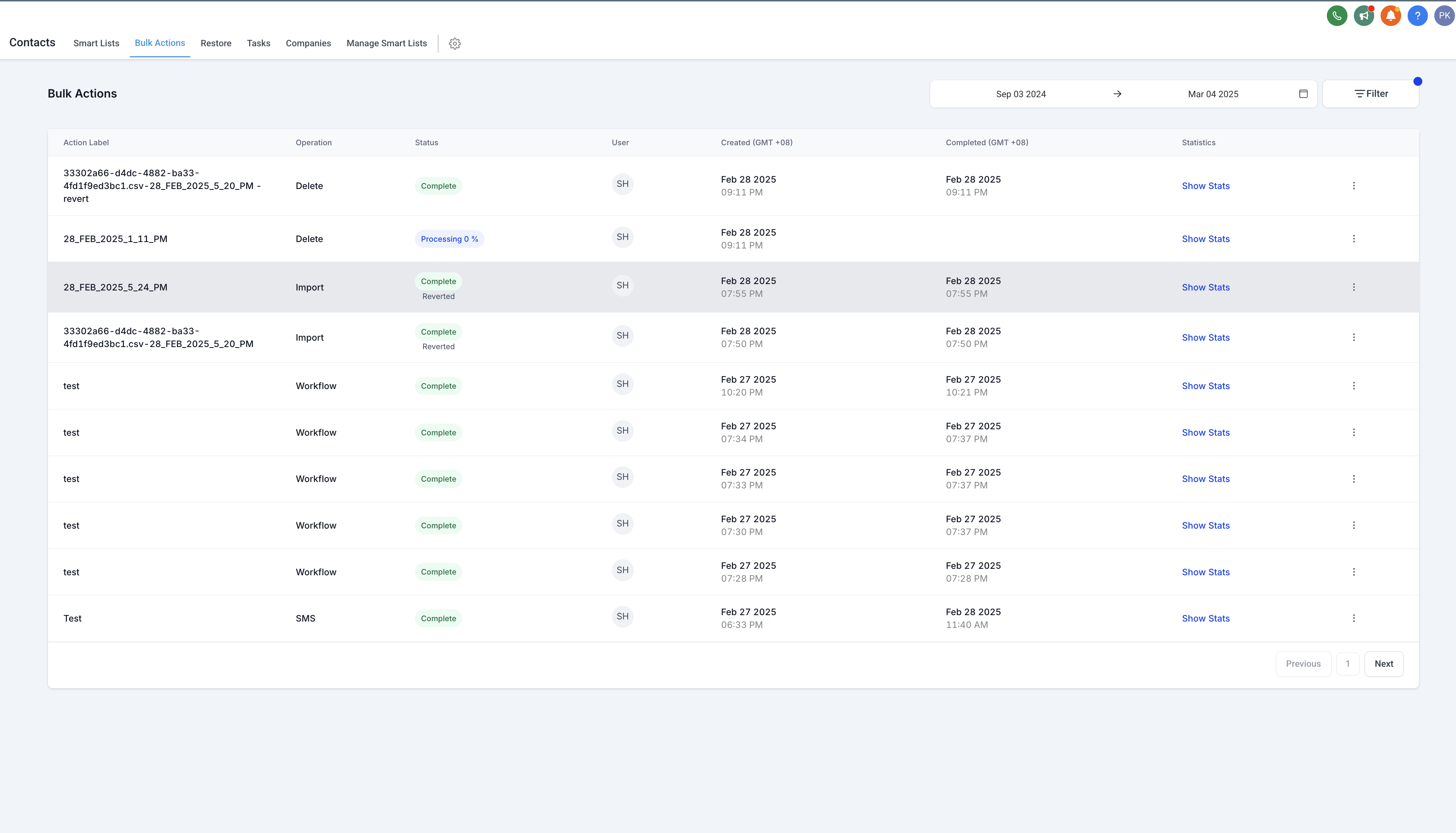
TABLE OF CONTENTS
- Feature 1 - Filtering
- Feature 2 - Status Indicators
- Feature 3 - Bulk Action Statistics
- Feature 4 - Managing Bulk Actions
Feature 1 - Filtering
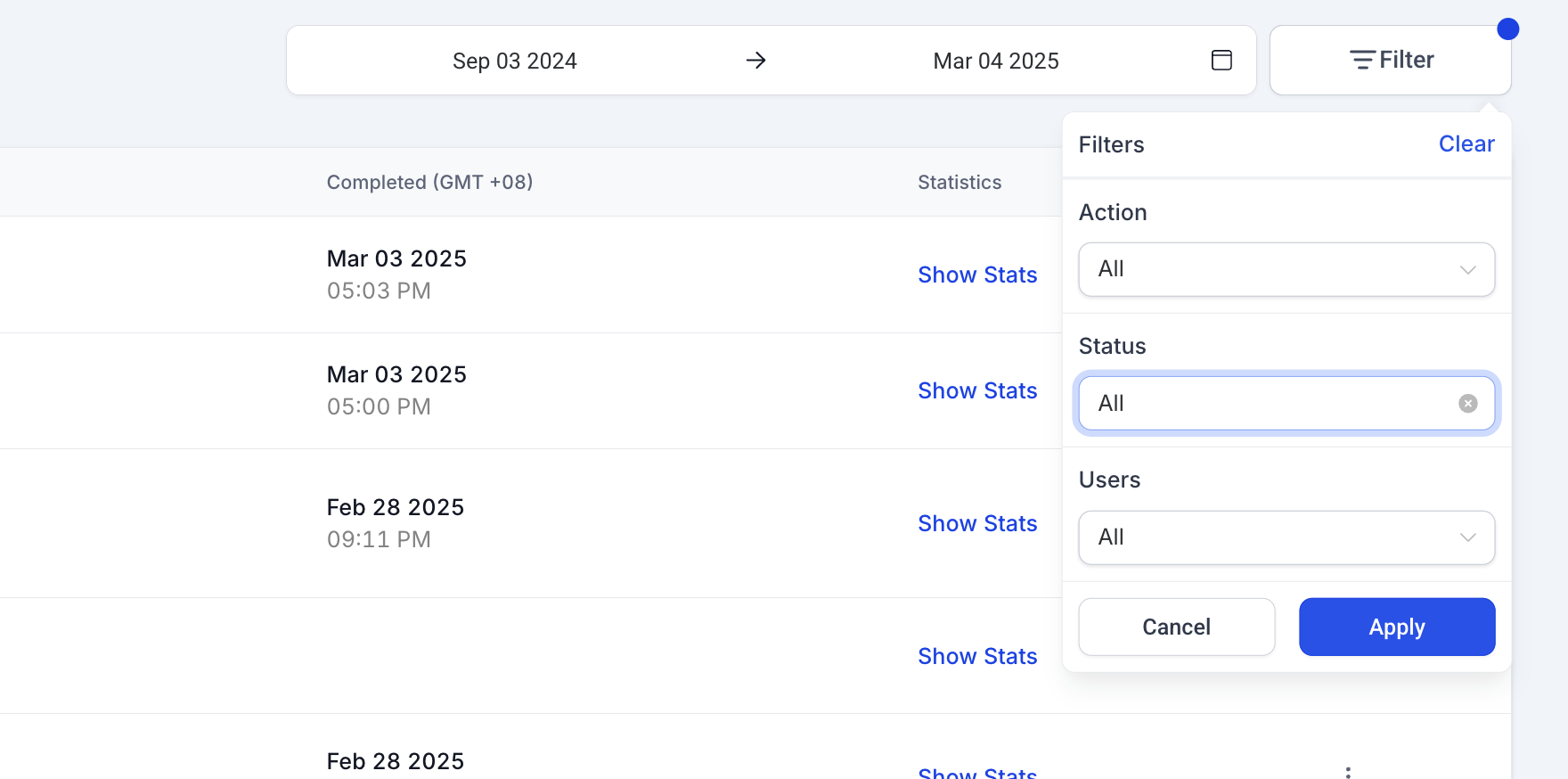
Users can refine their bulk action view using the Filter option in the top right corner of the Bulk Actions page.
Supported Filters:
-
Action Type (Import, Delete, Workflow, etc.)
-
Status (Complete, In Progress, Cancelled, etc.)
-
Users (Filter by user who initiated the bulk action)
-
Date Range (Select a specific timeframe to view bulk actions)
Filtered views can be shared via a URL, allowing quick access to relevant bulk actions.
Feature 2 - Status Indicators
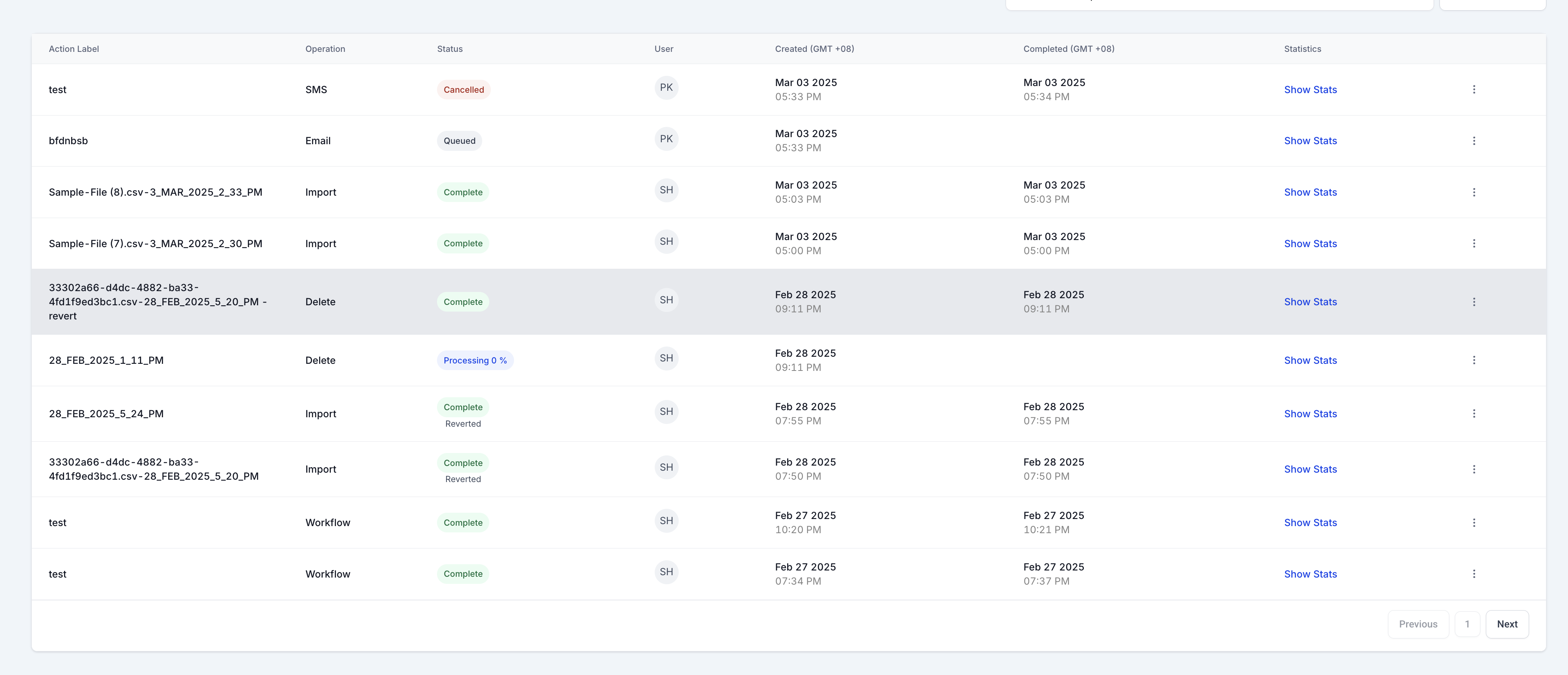 Color-coded status indicators help users quickly identify the state of each bulk action:
-
✅ Green: Completed
-
? Red: Cancelled
-
? Blue: In Progress (with real-time percentage updates)
Feature 3 - Bulk Action Statistics
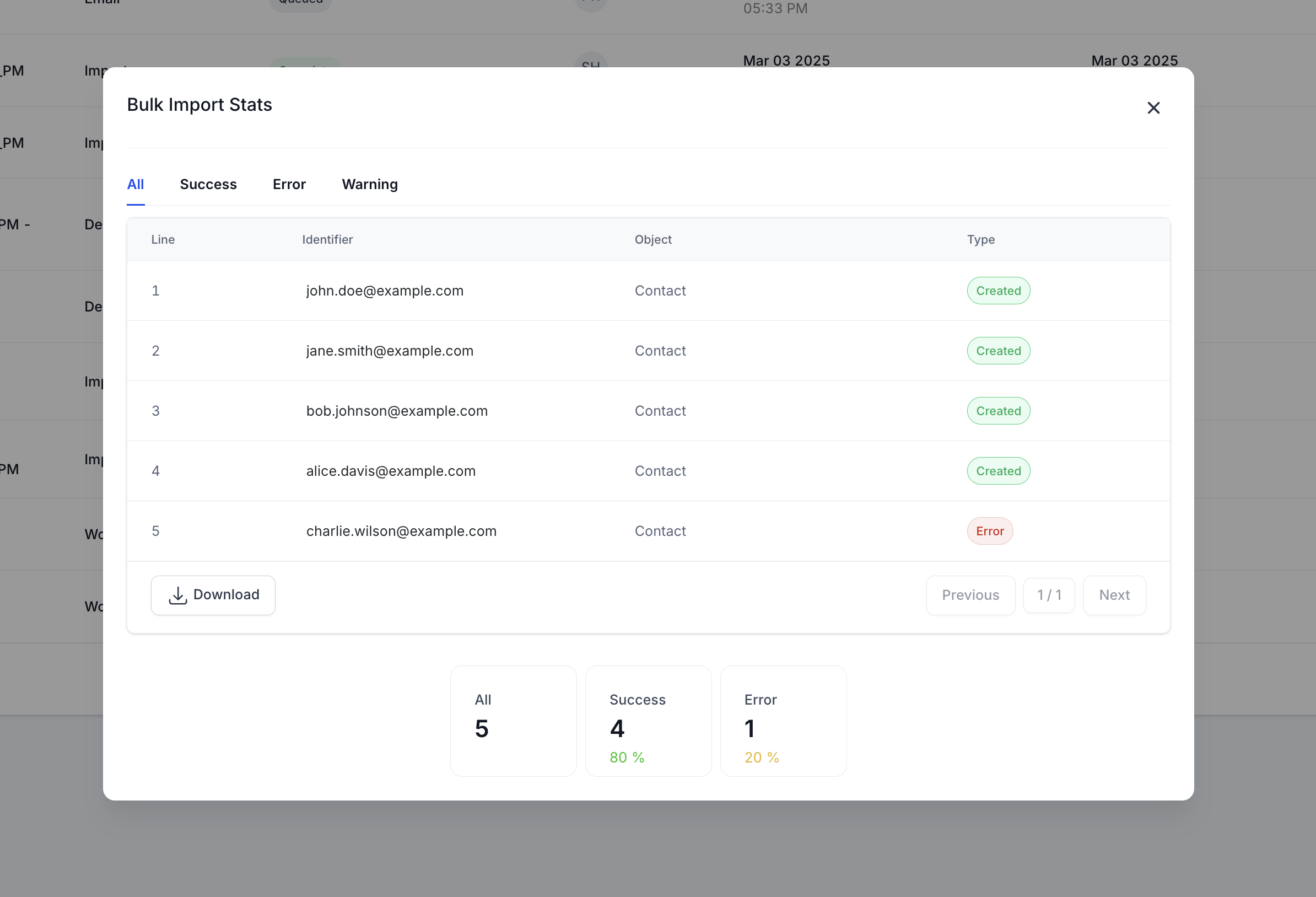
You can view key metrics for each bulk action by clicking Show Stats next to an action. A detailed breakdown includes:
-
Total actions processed
-
Success count
-
Errors and warnings
-
Downloadable reports for deeper analysis
Feature 4 - Managing Bulk Actions
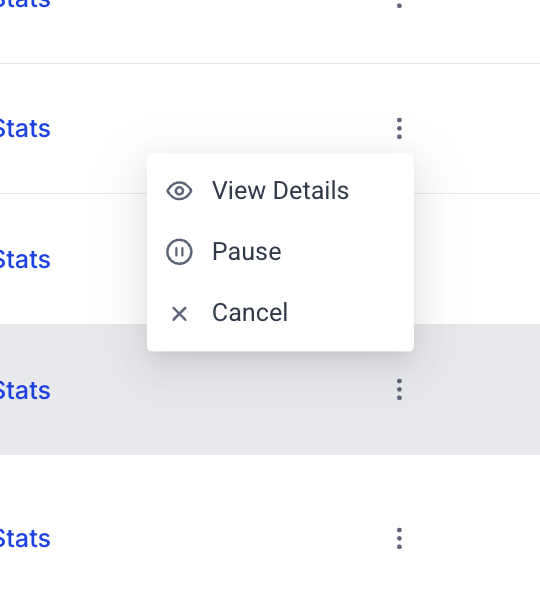
Users can take various actions on bulk processes:
Available Actions:
-
Cancel a running bulk action
-
Revert a completed bulk action
-
Pause & Resume ongoing actions
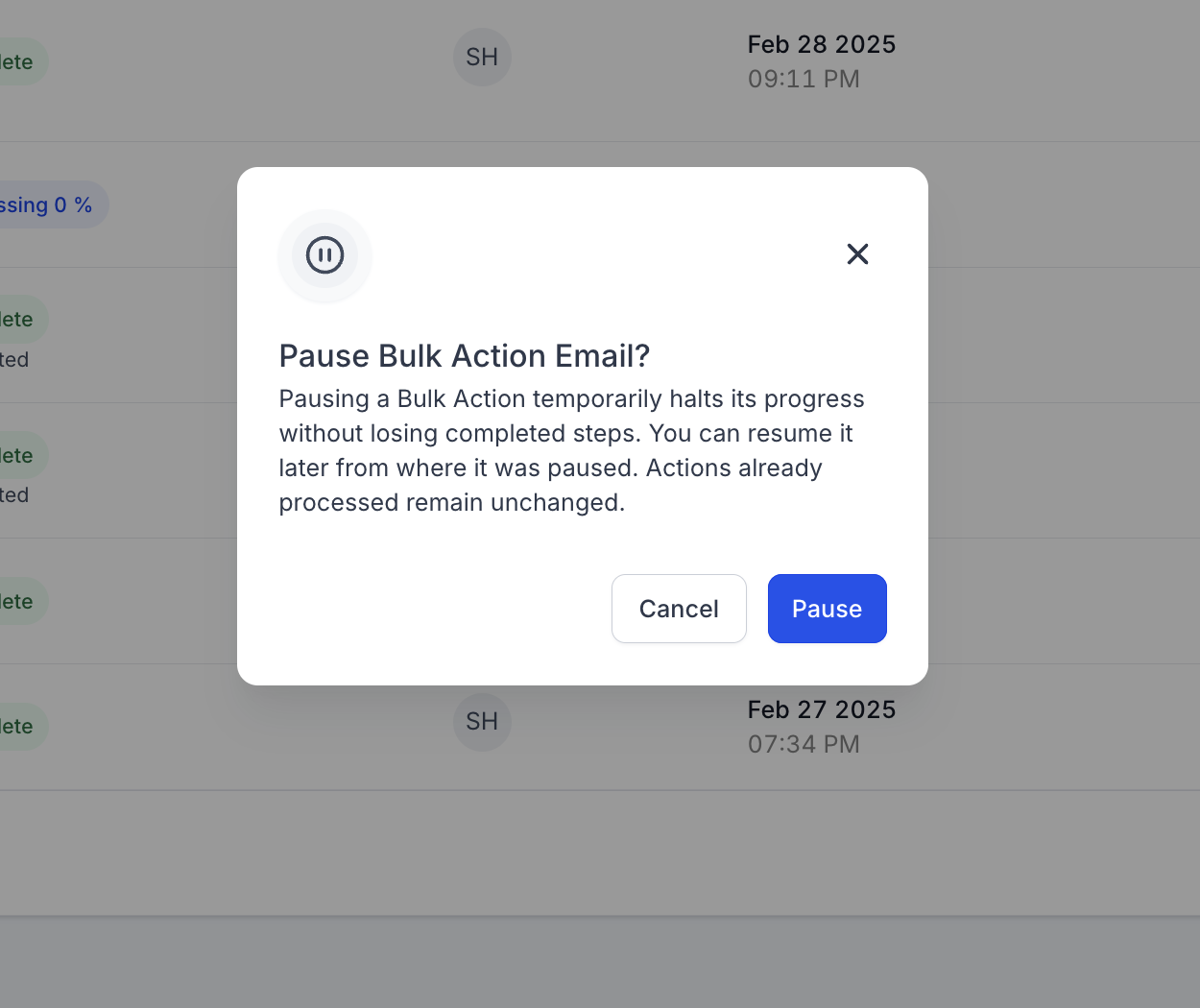
How to Manage Bulk Actions:
-
Click the ⋮ (three-dot menu) next to a bulk action.
-
Select the desired action (Cancel, Revert, Pause, Resume).
-
Confirm the action in the modal popup.
-
A notification will confirm the action’s success or failure.