How to export contacts?
Please Note:
Only sub-account admins and location admins have the privilege to export contacts, ensuring secure access and control over sensitive contact information. This restriction helps maintain data integrity and prevents unauthorized usage of contact data.
Step 1: Access Contacts
Log in to the account (as an Agency or Sub-Account admin)
Navigate to the Contacts tab.
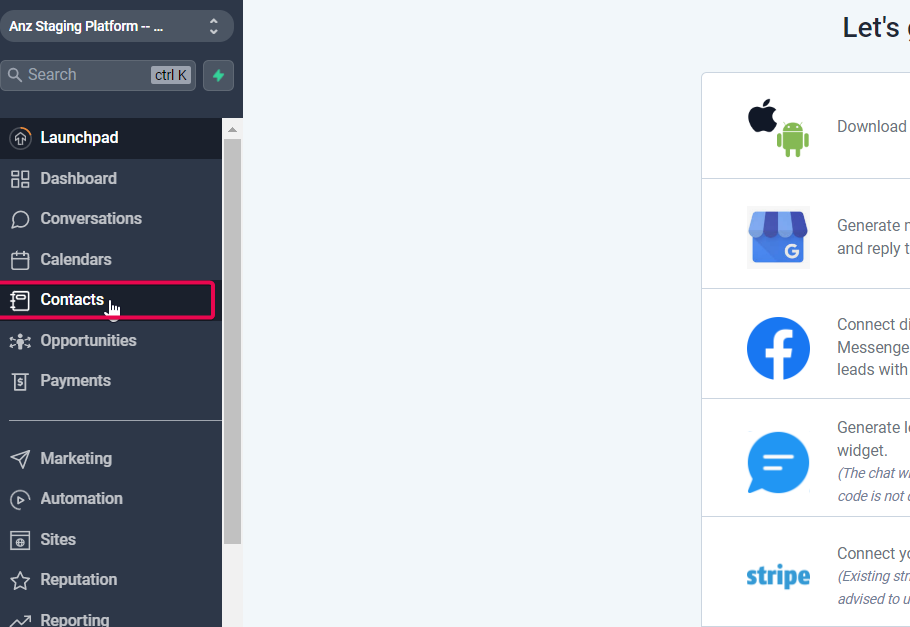
Step 2: Select Contacts
Browse through your contacts list.
Check the box next to each contact you want to export
Please Note
You may also use filters to specify which contacts you want to mark for export

To select all contacts on a page or the entire list, use the corresponding checkboxes

Please Note:
When exporting contacts, only the most recent note (up to 255 characters) is included for each contact. This keeps the exported .csv file size manageable and focuses on the latest information. In the .csv file, the newest note appears as a separate column, but older or longer notes are not included in the export.

Step 3: Customize Columns (Optional)
Click on the Columns button
Check or uncheck boxes to include or exclude specific columns in the export.

Please Note
In the Contact Export section, if users have selected the email option in the smartlist column, a new column named “Additional Email” will automatically appear in the exported CSV file. This column will contain all the additional emails arranged in one column and separated by commas(,).
Step 4: Export Contacts
Click the "Export Contacts" icon or button
Confirm your export action if prompted
Step 5: Download the .csv File
Wait for the export process to complete
Download the generated .csv file containing your selected contacts and their information.
Now you can use this .csv file for various purposes, such as transferring contacts to another account, importing them into a different system, or analyzing data.