Adding widgets to your dashboard allows you to easily access important data and metrics in one place. Whether you’re tracking leads, appointments, or sales performance, customizing your dashboard ensures it reflects the unique needs of your business.
Step 1: Open the Widget Menu
To add a widget, click the Add Widget button. If you're here to create the widgets inside the existing Dashboard then you can click the pencil icon at the top right corner. This opens the widget menu on the right-hand side of the screen.
Step 2: Choose the Chart Type and Widget Category
Select the type of widget you want to add by browsing the categories or using the search bar to find a specific widget.
1. Select the chart type for the data to be displayed. You can choose from different chart types such as Numeric, Donut Chart, Line Chart, Bar Chart, Horizontal Bar Chart, and Table chart.
2. Select the widget category based on the data you wish to be displayed on the dashboard. Below are a different widget categories to choose from.
Step 3: Customize Your Widget
In the Widget Settings panel:
- Chart Type Selection: Choose how you want your data to be visualized. The chart type selector is now built into the widget settings for quicker access.
- Title and Description: Optionally add a name and short description for the widget.
Step 4: Apply Filters
Switch to the Conditions tab to apply filters to your widget data:
- Click “Add Filter” to create your first group of filters.
- Use “+AND” to keep adding more filters within the same group.
- Click “+Add Filter” again to start a new group. This will create an OR condition between the groups.
- You can now reuse the same filter (e.g., "Session Source") in different groups.
Step 5: Save
Once everything’s set up, click Save to add the widget to your dashboard.
Step 6: Add More Widgets
To build a complete picture of your data, repeat the process to add more widgets. For example:
Step 7: Organize Your Widgets
Once your widgets are added, you can resize and reposition them to suit your needs. Drag and drop widgets into place and adjust their size for better visibility.
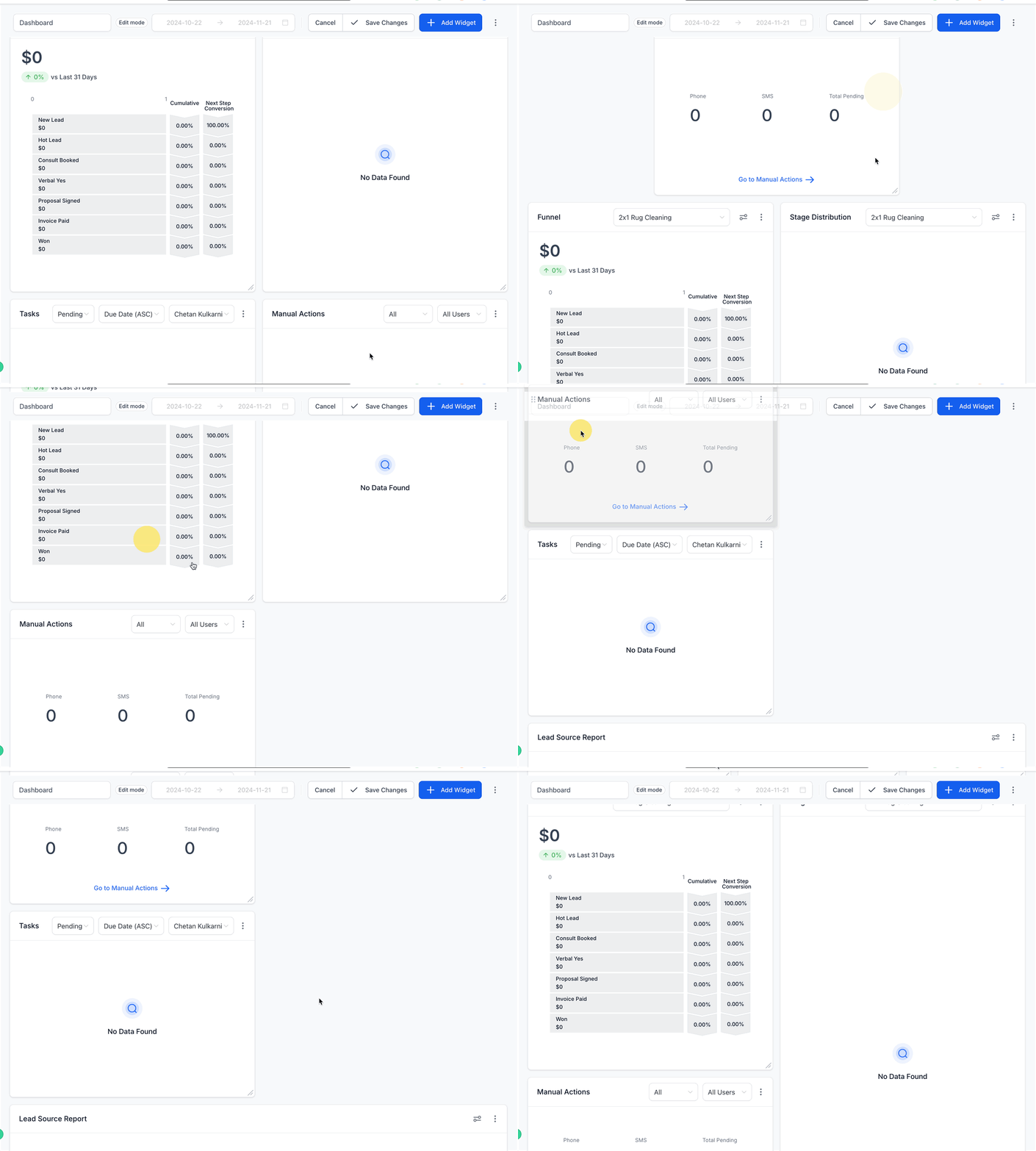
Step 10: Save Changes
After organizing your widgets, Click Save Changes at the top of the dashboard. This ensures your new setup is saved and ready for use.
Additional Tips
• Experiment with different widget types to find the best way to visualize your data.
• Use filters and conditions to refine your widgets and make them more relevant.
• Revisit and update your dashboard as your business needs evolve.
By following these steps, you’ll have a fully customized dashboard that gives you quick access to the insights you need to run your business effectively.