What are Agency Company Settings (and How do you access Them)?
Agency Company Settings is your central control panel for managing your agency's identity, branding, and global platform settings across all subaccounts. From customizing your logo and login domain to enabling powerful tools like Workflow AI or Template Libraries, everything starts here. You can find these settings inside your Agency Dashboard by following these steps:
Step 1: Click the Settings gear icon on the bottom-left navigation panel and select the Company tab at the top.
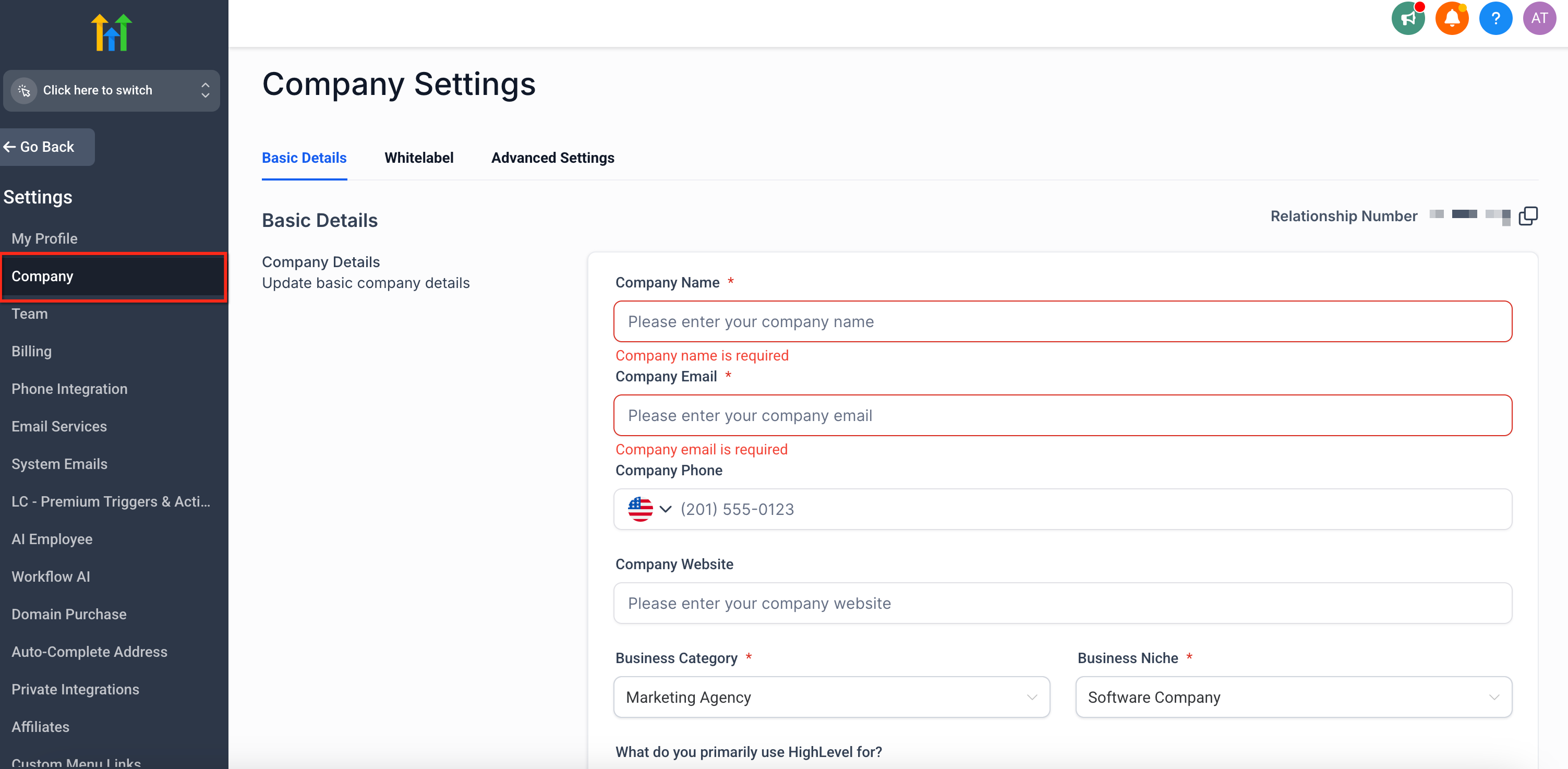
Step 2: Explore the three primary tabs, which are explained in detail below:

-
Basic Details – Core business information, location, and toggles for agency-wide features.
-
Whitelabel – Custom logos, domains, legal policy links, and styling with custom code.
-
Advanced Settings – Security preferences, session timeouts, onboarding optimization tools.
Part 1: Basic Details Tab
The Basic Details Tab is where you set the foundation of your agency’s identity inside Lead Hero. From your business name and niche to contact info and feature toggles, this area sets the tone for your agency across the platform.
1. Company Info & Identity
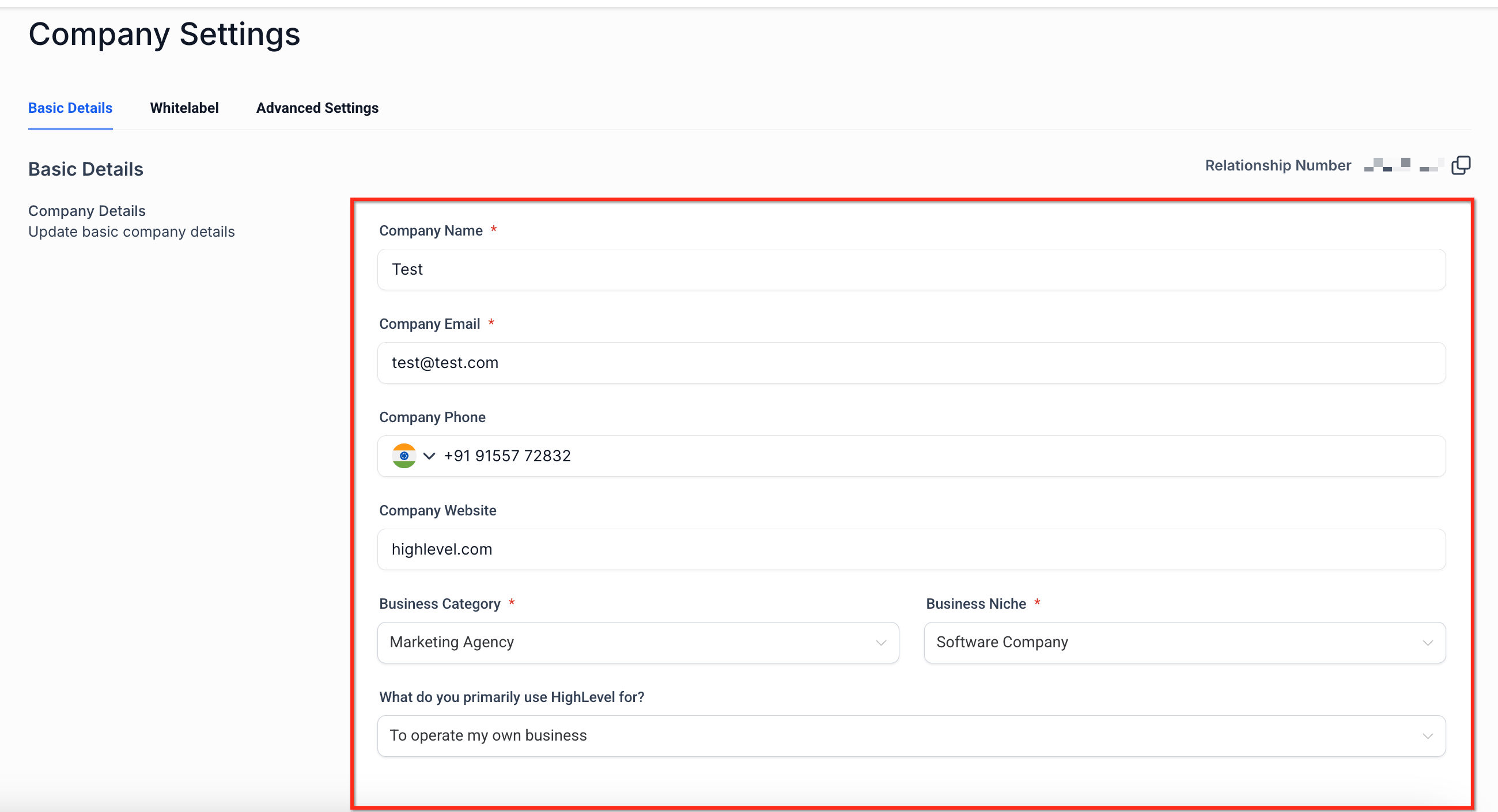
Update basic company details, such as your agency’s name, contact info, and website to ensure consistent branding across the platform. These fields form the foundation of your agency’s identity and appear in client-facing areas like login portals, email templates, and system-generated messages.
-
Company Name, Email, Phone – Your main business identifiers used in headers, emails, and system elements.
-
Website URL – This adds credibility and is referenced in white-labeled experiences.
-
Business Category & Niche – Helps personalize Lead Hero features for your industry.
-
Usage Type – Define if you're an agency or a business using Lead Hero directly.
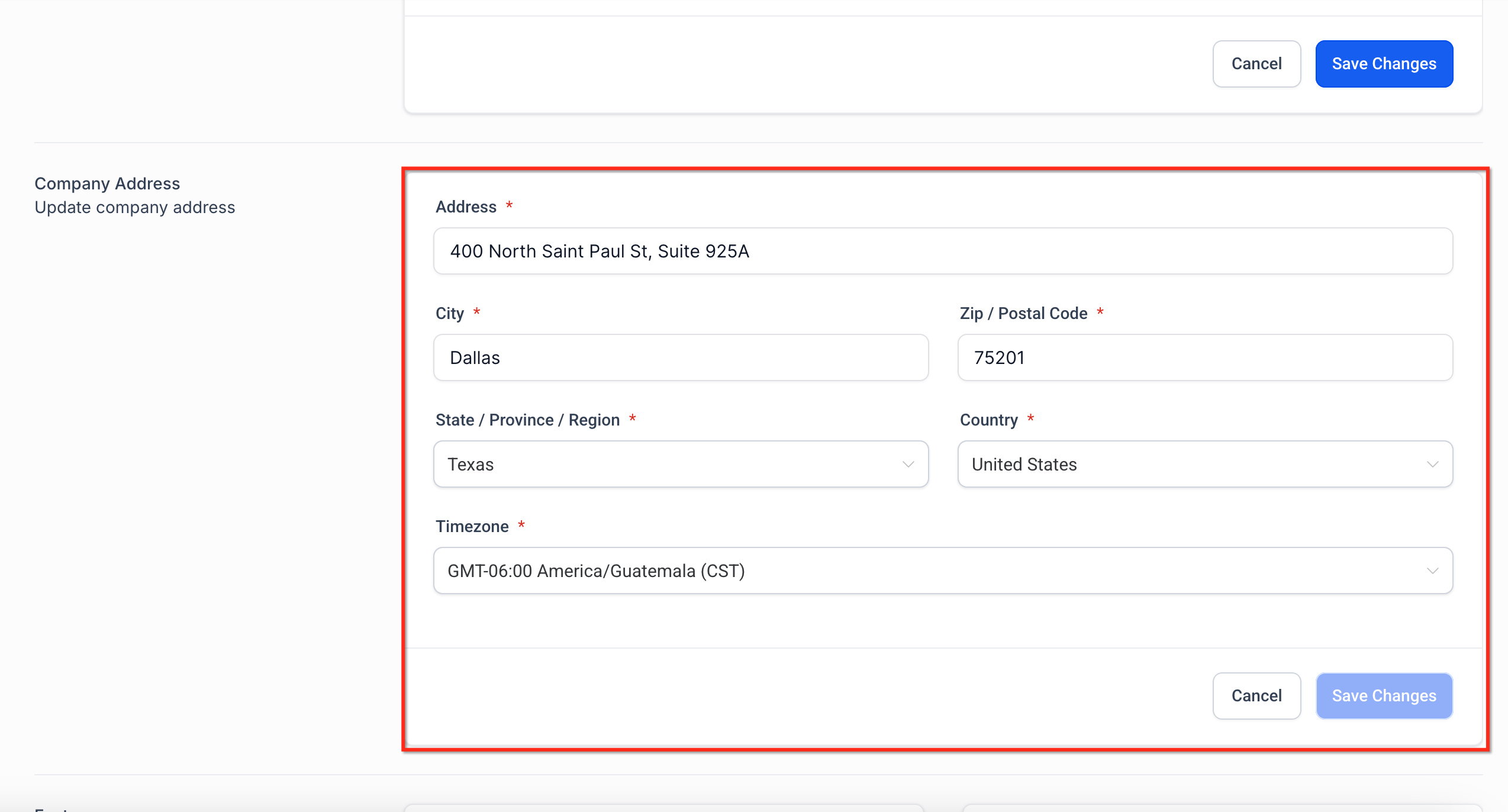
2. Company Address & Time Zone
-
Address, City, State, Zip, Country – Used in system templates and for compliance
-
Time Zone – Affects automation timing, workflow logs, and campaign accuracy
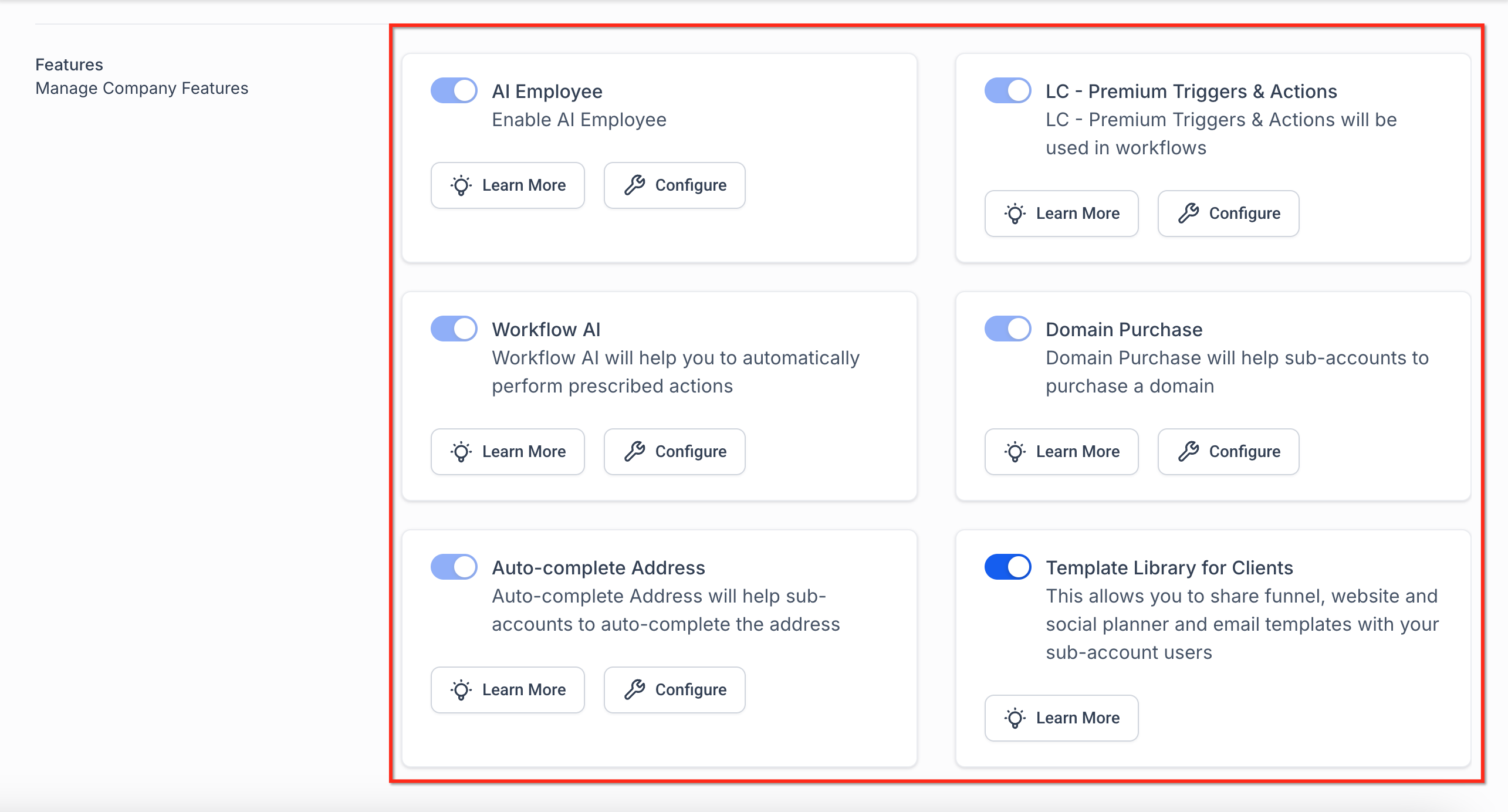
3. Feature Toggles
Enable or disable agency-level tools and automation helpers:
-
AI Employee – A Smart assistant to handle repetitive tasks.
-
Workflow AI – Inject AI logic into workflows.
-
Auto-complete Address – Improve form usability for clients.
-
LC - Premium Triggers & Actions - LC Premium Triggers & Actions will be used in workflows.
-
Domain Purchase – Allow clients to buy domains inside the platform.
-
Template Library – Share funnels, websites, and templates.
Part 2: Whitelabel Tab
The Whitelabel tab lets you fully customize your agency’s branding for client-facing experiences. Add your logo, use your own domains, and maintain compliance with legal policies.
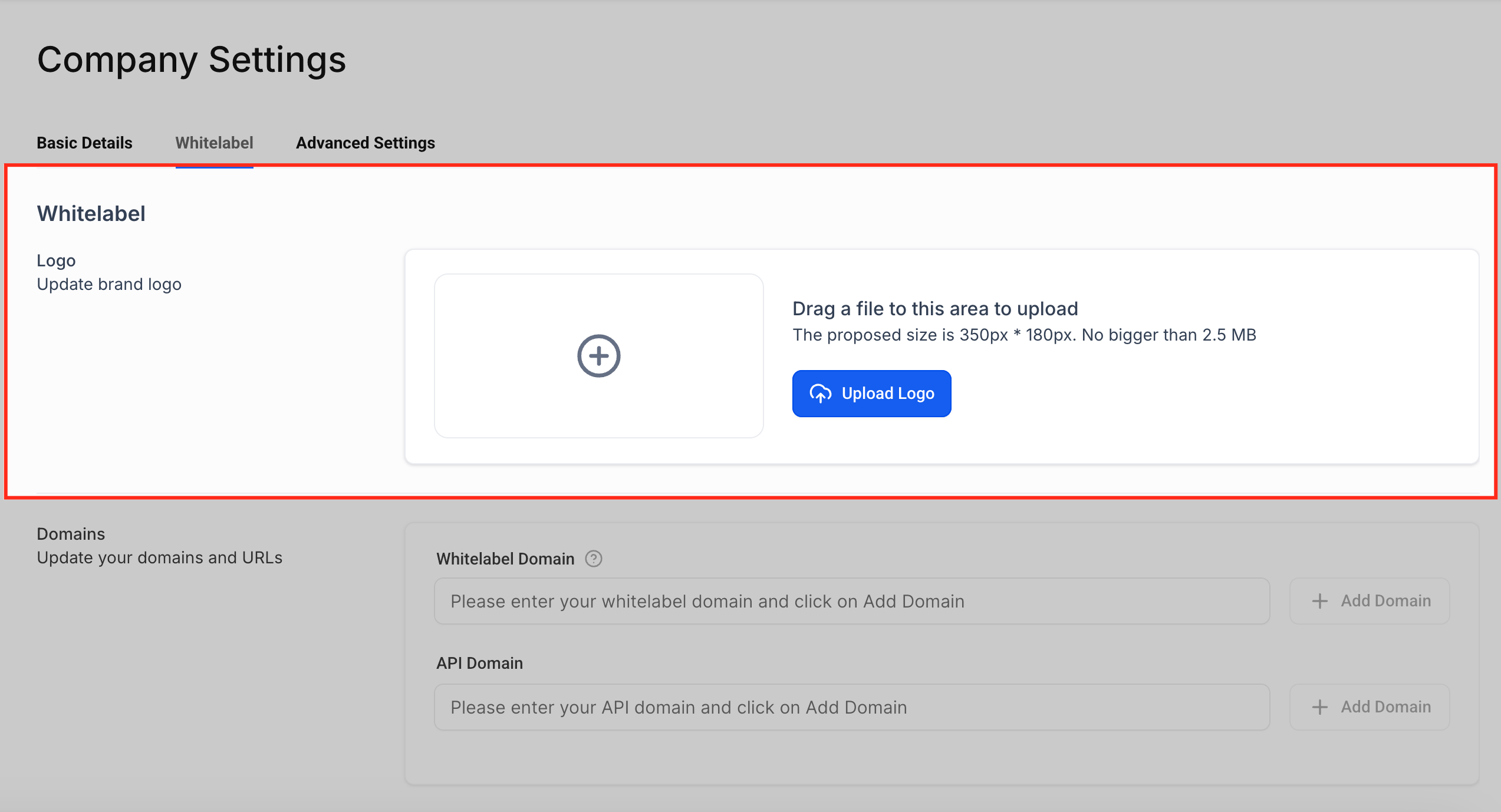
1. Logo & Branding
Upload your agency logo to display in key client-facing areas such as the login screen, app header, and system-generated emails. A clear, professional logo helps reinforce your brand identity across the platform.
- Recommended logo size: 350px * 180px. No bigger than 2.5 MB
- Appears in:
- Login screen
- App header
- Notification emails
- Some widgets and form footers
2. Custom Domains
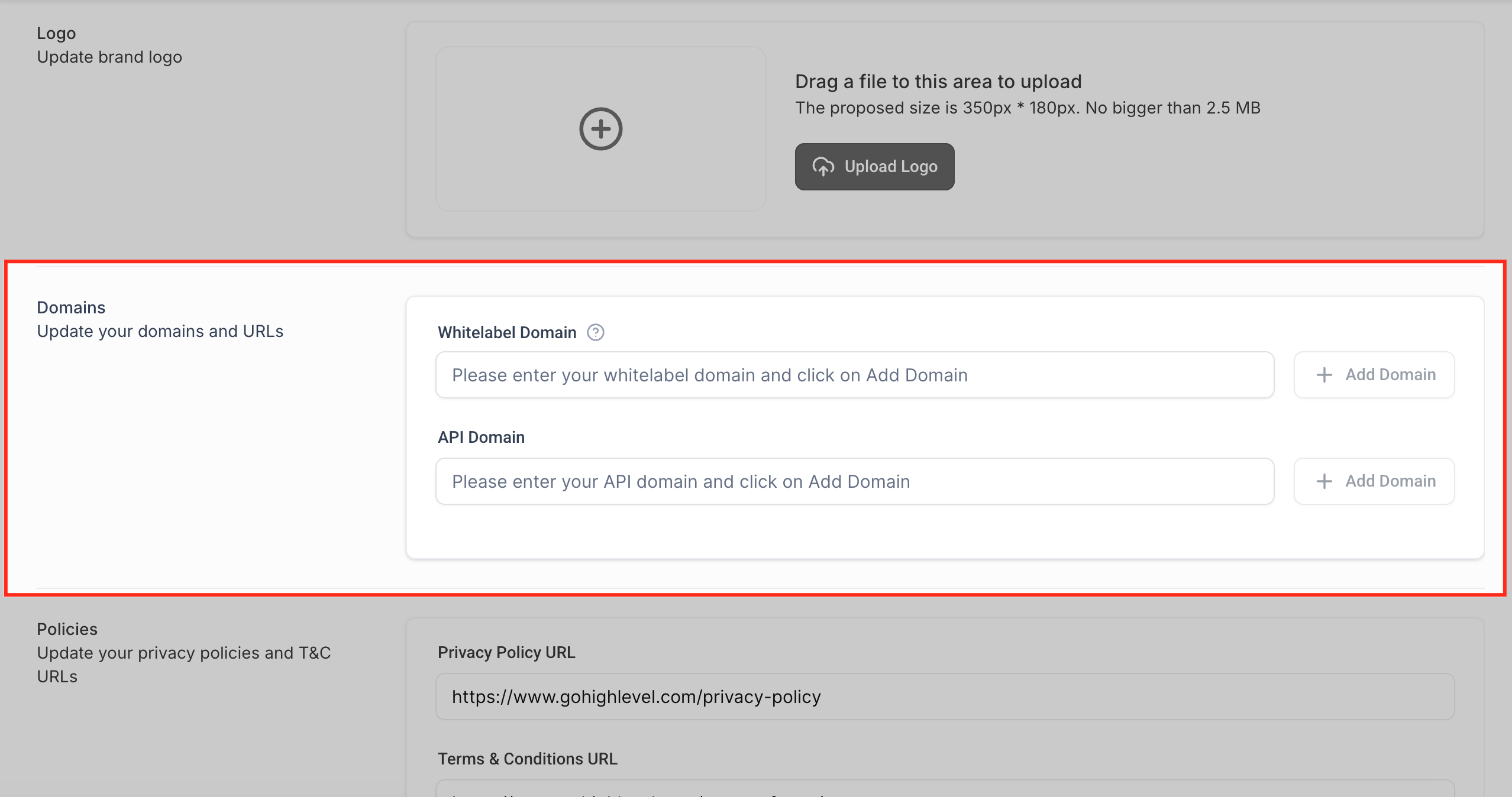
Set up your own custom domains to completely white-label the login experience and link tracking. These domains remove Lead Hero branding from your client interactions and increase trust and professionalism.
-
Whitelabel Domain – Branded domain for your desktop login portal. For more, visit How to Set Up a Whitelabel Domain for the Desktop Web App.
- API Domain – Customize system-generated links in Lead Hero by configuring branded (API) domains at both the Agency and Sub-account levels. For more, visit Branding System-Generated Links (API Domain).
3. Policy URLs
Ensure legal compliance and transparency by linking to your agency’s Privacy Policy and Terms & Conditions. These links appear in widgets, forms, and login pages where needed.
-
Privacy Policy URL – Required for compliance in most public-facing widgets
-
Terms & Conditions URL – Helps clients understand their usage obligations
For more, you can refer to GDPR Compliance and Data Privacy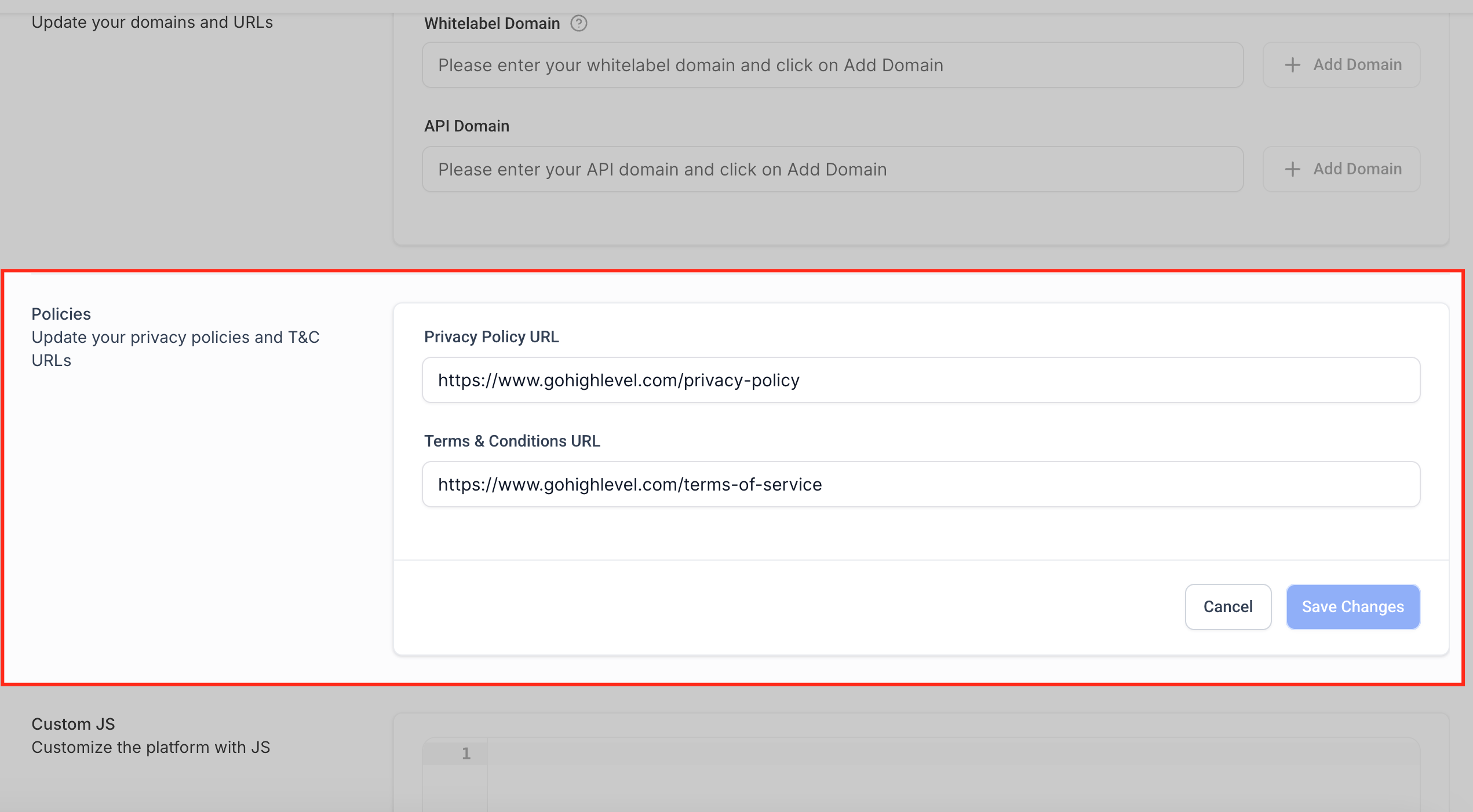
4. Custom Code (JS & CSS)
Use custom code to style your agency dashboard and add third-party tools or custom logic. This is powerful but should be used cautiously, as changes to the Lead Hero platform could impact how your code functions.
-
Custom JavaScript: This is used for Live chat widgets, Google Analytics, tracking pixels, etc.
- Custom CSS This is used for: Hiding interface elements, changing button colors, and modifying text styles.
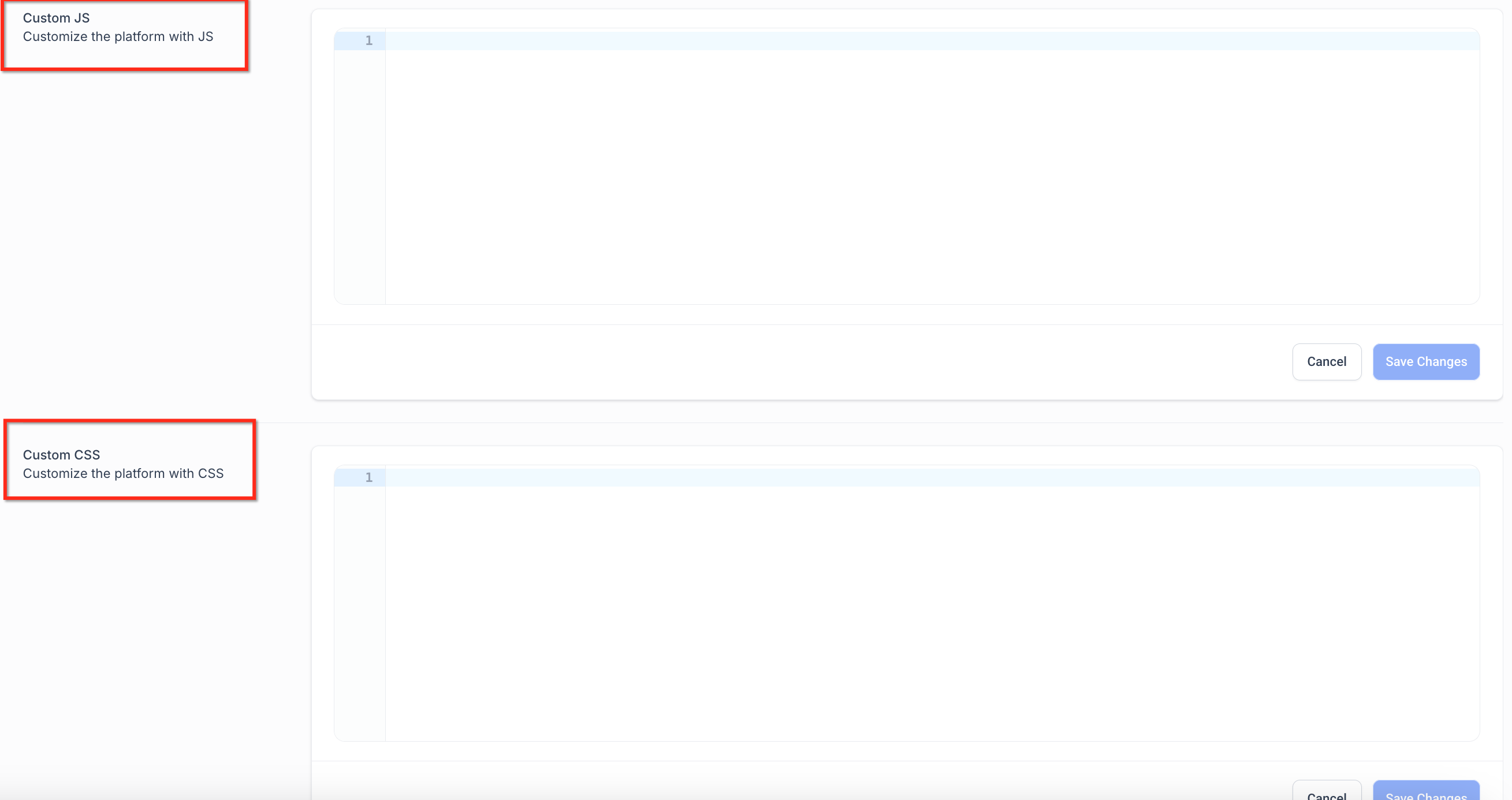
IMPORTANT: Custom JS/CSS is powerful but unsupported. Changes made to Lead Hero’s core UI may break your code. Always test thoroughly.
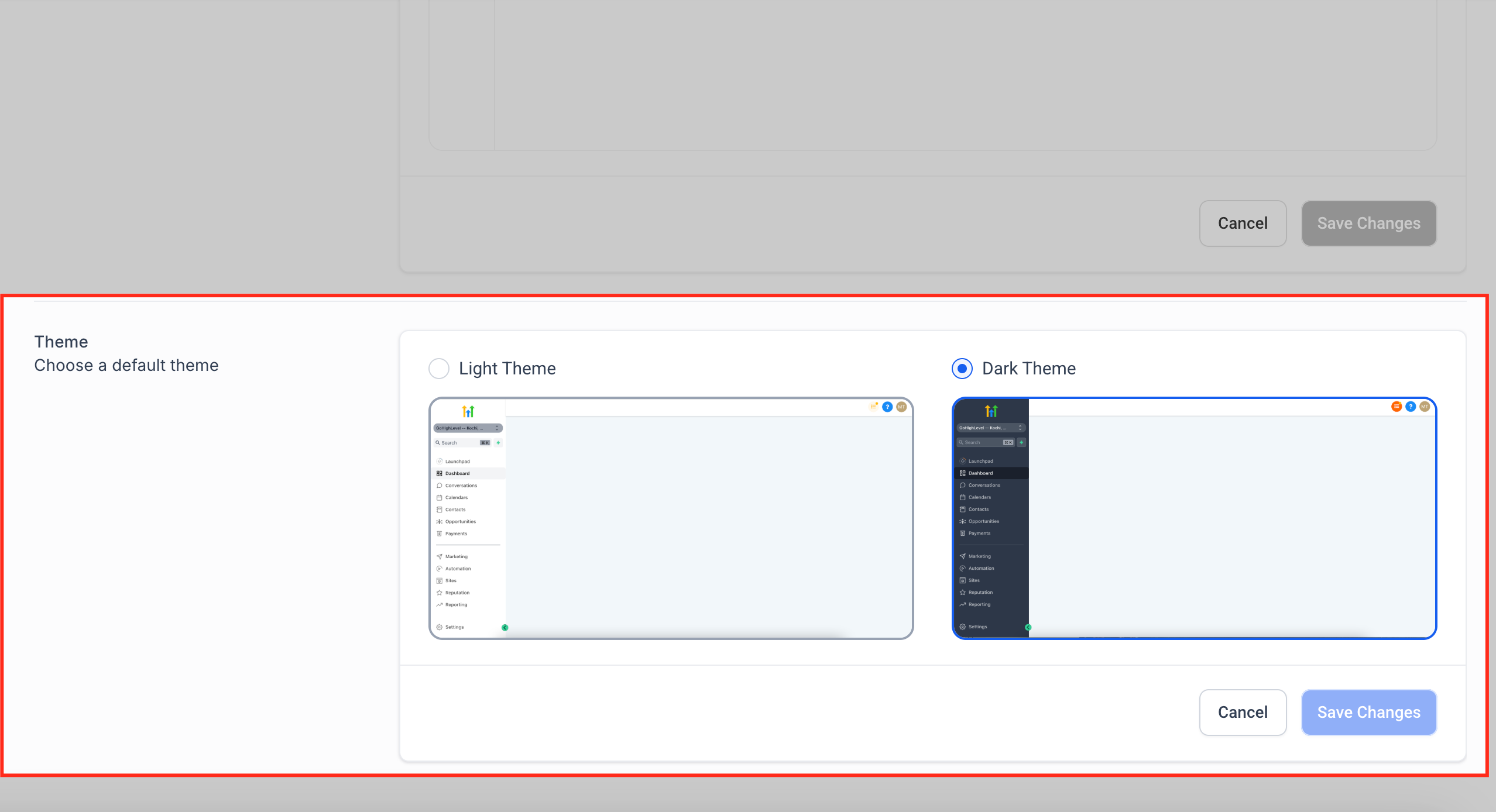
5. Theme Selection
Choose your agency dashboard’s default theme to match your brand or personal preference. This does not affect your sub-accounts’ dashboards—only your agency-level view.
-
Light Mode – Clean, bright appearance.
-
Dark Mode – Modern, high-contrast interface.
Part 3: Advanced Settings
The Advanced Settings Tab allows you to secure your agency account, manage session behavior, and enhance the onboarding experience for your clients. This section includes toggles for key productivity features, early access tools, and platform security controls that affect both your agency and your subaccounts.
Configuring this area properly helps prevent unauthorized access, improves the user experience for clients, and ensures smoother operations across your agency.
Use Case Matrix
| Feature | Use Case | Best Practice |
|---|---|---|
| Enhanced Security | Protect agency and client data | Always enable unless using legacy APIs |
| Session Timeout | Limit exposure on shared devices | Choose 30–60 mins for most agencies |
| NPS Survey | Get client satisfaction insights | Enable for service-based agencies |
| Product Guides | Reduce client onboarding workload | Ideal for onboarding new SaaS clients |
| Daily Updates | Encourage lead follow-up | Great for real estate or sales-focused clients |
| Beta Features | Access unreleased tools early | Enable only if you’re prepared to test actively |
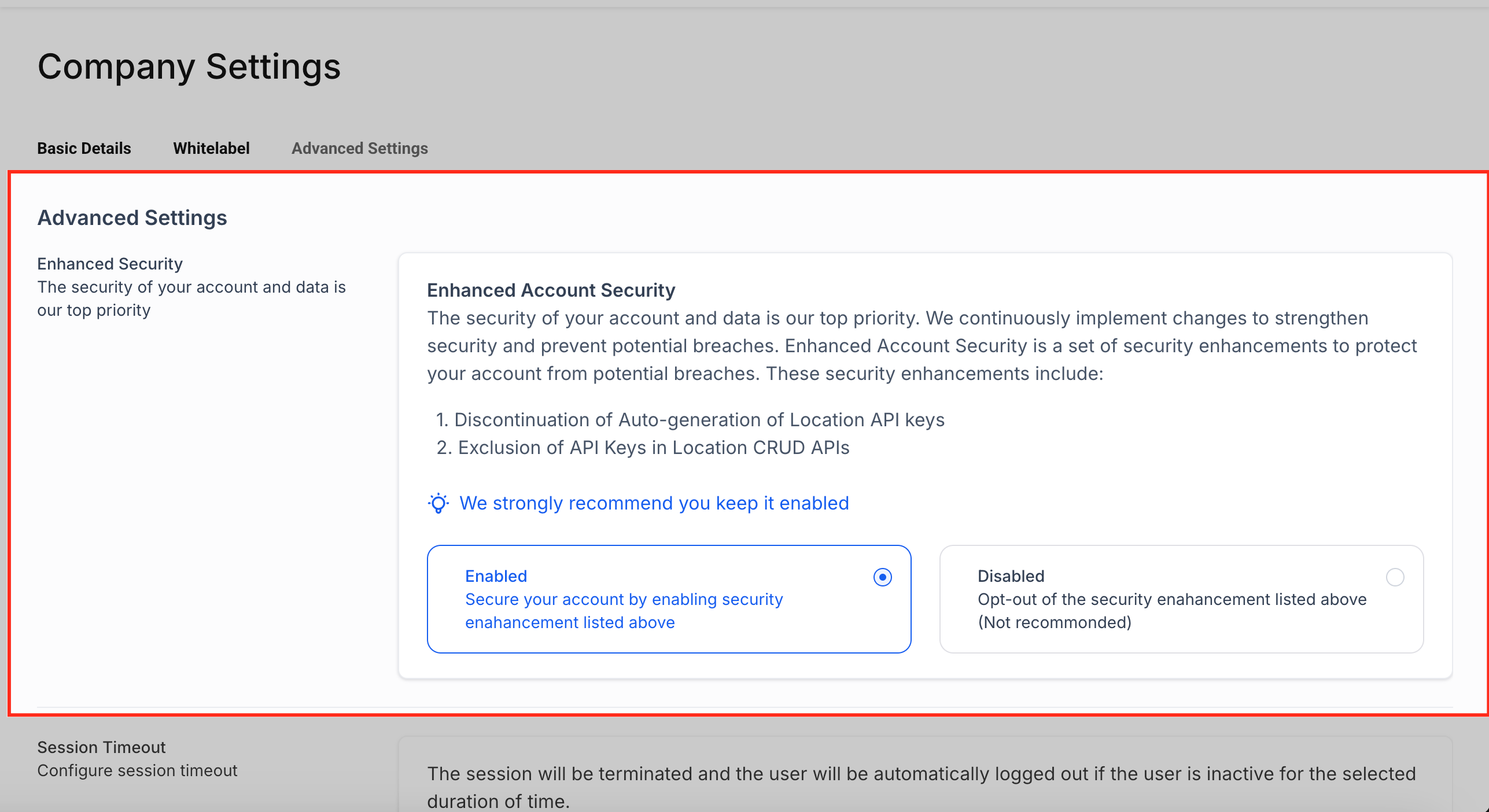
1. Enhanced Account Security
Enable Enhanced Account Security to limit exposure to unauthorized API access and protect your agency’s data. This is especially important for agencies that have developers or third-party apps interacting with the platform via API.
What it does:
-
Disables auto-generation of legacy API keys
-
Restricts CRUD access to sensitive API endpoints
-
Prevents accidental data leaks due to open access
For more, visit Enhanced Account Security.
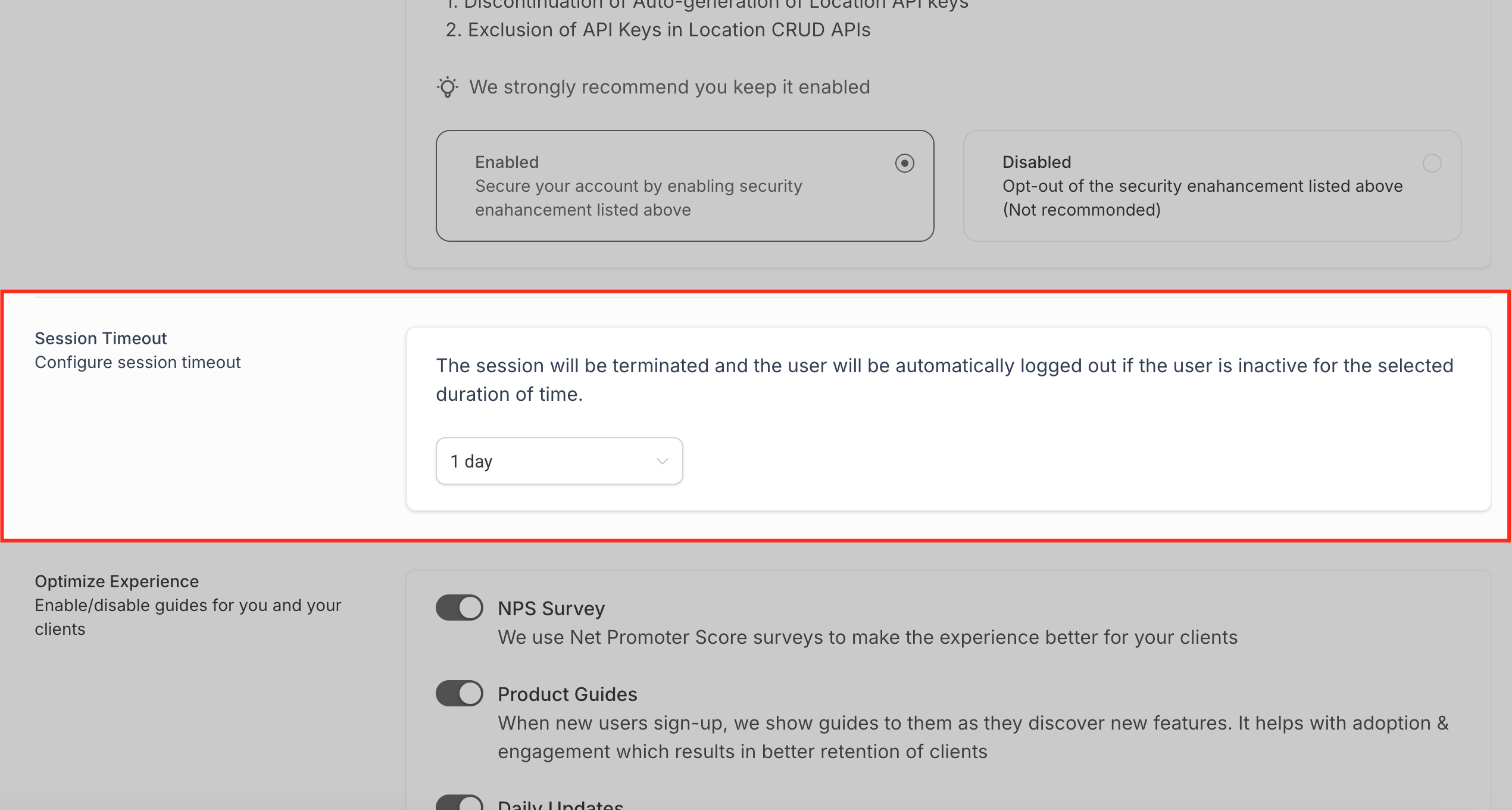
2. Session Timeout
Control how long users can remain logged into Lead Hero without activity. This feature helps secure your agency's platform access by logging out inactive users after a set duration.
Available options typically include:
-
15 minutes
-
1 hour
-
4 hours
-
8 hours
-
12 hours
-
1 day
-
2 days
-
3 days
-
Never
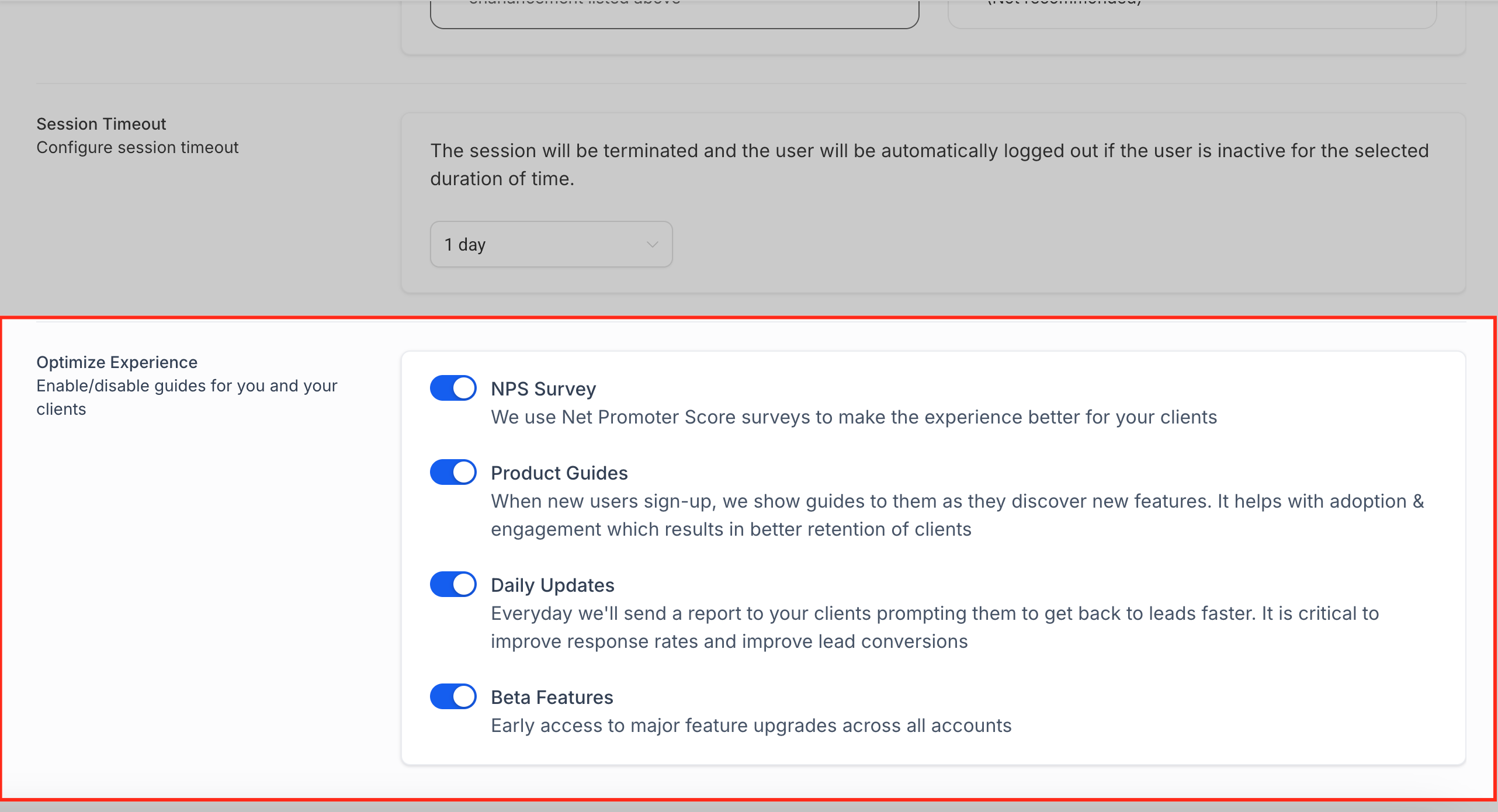
This is especially useful in shared office environments or when accessing Lead Hero on public or team devices.
3. Optimize Experience Settings
This section lets you turn on or off client-facing tools designed to improve onboarding, engagement, and feedback collection. These tools are designed to help clients understand the platform and take action faster.
For more, visit Optimize Experience Features.